Profiles allow you to define what information each type of user can view or edit within the platform, according to their roles and responsibilities. Through profile configuration, you can tailor access to your organization's needs, ensuring secure and controlled use of the system.
For more details about permissions on the platform and what each one does, you can see the article called Permissions - Configuration and Use Manual
Profiles available by default
When you start using Buk, you already have the following profiles:
- Administrator: Has full access to the platform and can edit all profiles except their own (this one can only be modified by the Project Manager). When you assign this profile to someone, all administrators will be notified.
- HR(custom)
- Consultative(custom)
-
normal profile: Base profile assigned to collaborators. It can be configured to define what information they will see.
To be able to configure the available profiles, you must have permission forUsers and Profilesset to "Yes", under System Settings. You will have it by default if you are an Administrator.
Create or edit custom profiles
To create or edit profiles:
- Go toSettings (⚙️) > Users and Profiles > Profiles.
- Click theCreate Profilebutton to generate a new one, or select the pencil icon to edit an existing one.
- Assign anameto the profile.
- In the “Action” column, select the permission you want to grant for each option
Definitions
- Tabs:General accesses that allow entering a module or section.
- Entities (or Groupers):Intermediate units that group several Permissions within a logical flow.
- Permissions:Specific configurations within an Entity that determine which items or processes can be managed. Permissions are ordered as they appear in the administrative menu. Note that available permissions depend on the contracted modules and active configurations in the company.
- Actions:Operations that can be performed within each Permission. The ability to edit actions may vary depending on the subscribed plan (Essential or Pro). To better understand this segmentation, review the article:How do permissions work according to the subscribed plan (Essential or Pro)?
Available actions
When configuring a profile, you can define these actions for each module or type of information. The available actions vary by grouping, and are:
- No: No permission to view the information.
- Yes: Permission to use the module.
- Read: Can view information, excluding sensitive information.
- Sensitive read: Can view all information, including sensitive payment-related data (for example, base salary, bonuses, incentives, among others).
- Modify: Can view and modify information.
These actions apply to each type of permission you want to grant. For example, you can give read-only permission for certain modules and modify permission for others.
To know in detail what each combination allows, you can review the description that appears below each one. You can also check the articles of the corresponding module or the articlePermissions - Configuration and Use Manual.
Once the profile is created, you can assign it to existing or new users:
5. In the Users section, you can see which profile each user has:
6. To assign a profile to a user, click the 3 dots to the right of a user and select "Edit". You can also do this when creating a new user. Then, select the profile you want to assign to that user:
Configuration of the normal profile
Thenormal profileis one of Buk's predefined profiles, intended for collaborators who access the platform with limited permissions. You can customize what information they can see on their personal profile and what actions they can perform, including additional permissions if they have people reporting to them.
To configure it:
- Go toSettings > Users and Profiles > Profiles > Normal profile configuration.
- The configuration is divided into two main tabs, "Permissions" and "Employee Profile"
1. Permissions
Define which modules and fields the normal collaborator can view or edit on the platform.
Here you will find two sections:
- Collaborator permissions: where you can select which modules users with the normal profile will have access to.
- Supervisor permissions: where you can select the permissions that supervisors will have in the application.
Specifically, in Supervisor Permissions it is possible to enable and disable the following permissions:
- Enable payroll exporters: Allows using custom exporters to extract information related to “Payroll” and “Substitution” of their subordinates.
- Enable vacation exporter: Allows using custom exporters to extract information related to “Vacation” of their subordinates.
- View documents: Allows accessing, generating and editing their subordinates' documents.
- View attendance calendar: Allows viewing subordinates' attendances and vacations on the calendar.
- View climate surveys: Allows viewing the results of the survey for the entire organization.
- View performance evaluations: Allows accessing the published performance evaluations of their subordinates.
2. Employee profile
In this tab you define which elements will be available in the employee profile.
Here you will find three sections:
- Profile tabs: You will be able to select the information the worker will see on their personal profile.
- Configuration of employee personal information fields: You will be able to search and select the fields your collaborators will be able to see on their profile.
-
Configuration of employee summary fields: You will be able to search and select the fields your collaborators will be able to see in the profile summary.
Below, you will find an image of the employee profile with three key sections for its configuration:
- Profile tabs: defines which sections will be visible to the collaborator within their personal profile.
- Personal information fields: select the personal data that the collaborator will be able to view.
- Summary fields: choose which information will appear as a quick view in the summary of their profile.
Profile tabs
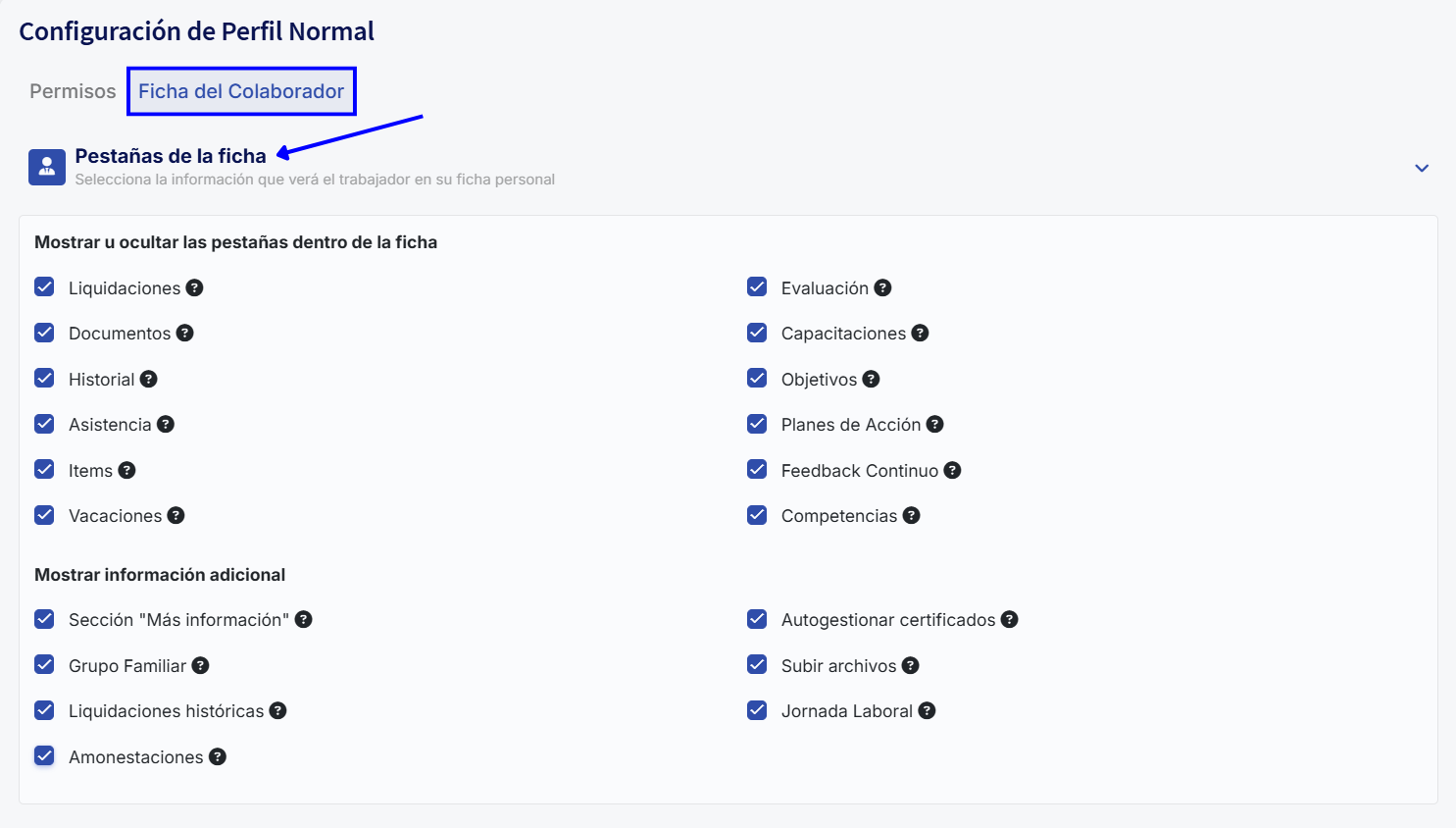
In this section you can select which tabs will be available to the collaborator within their profile, such as "Personal data", "Vacation", "Documents", among others. This allows you to adapt the profile to each company's needs and hide what is not relevant.
Personal information fields
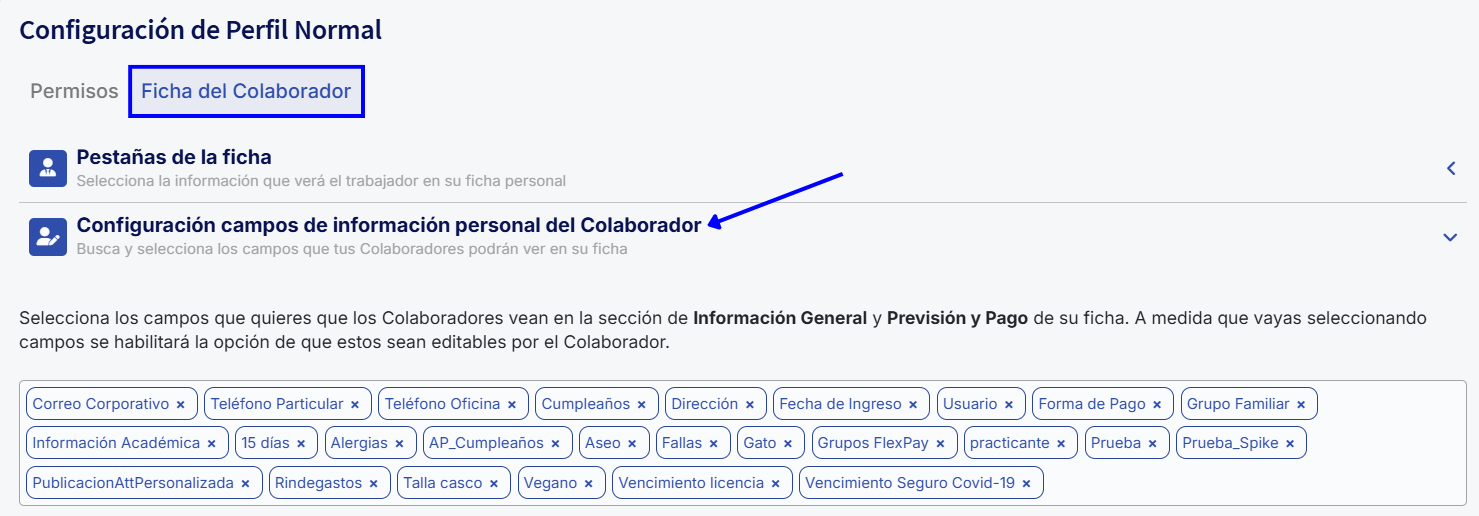
Here you can define which specific fields will be visible in the left box of the employee's profile. For example: hire date, social security, address, among others.
Employee summary fields
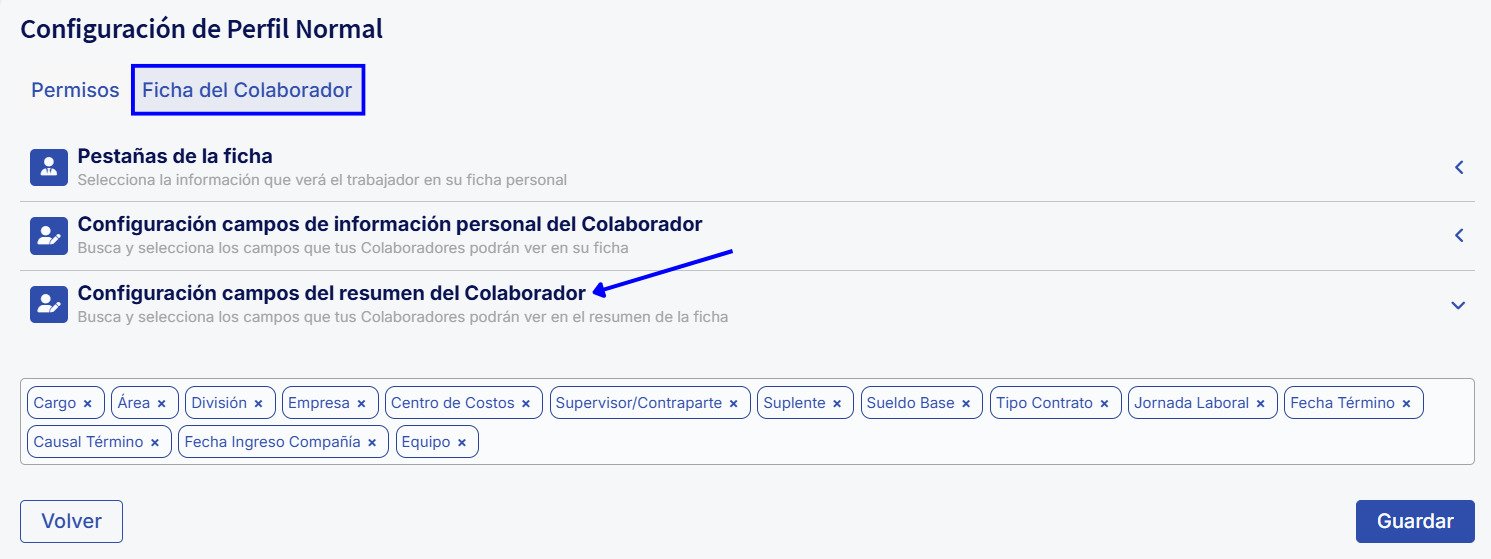
In this section you can configure the summary view that appears when entering the profile. You only need to select or deselect the fields from a dropdown list. Some of the available attributes are: area, position, site, substitute, base salary, contract type, nationality, vacation balance, overtime hours, among others.
Once you save the changes, they will be reflected in theSummarytab of the employee profile.
💡Still have questions?
If this article does not fully answer your question or you need support in a particular case, our team is available through the support channels.
Chat | Phone | Email
🎓Interested in getting certified in Buk?
We invite you to take a course of your interest on Buk Academy, where you will find guided content to deepen your use of the platform and strengthen your knowledge.
🤖 This article was translated using artificial intelligence. View original article.